![Screenshot 2022-05-21 at 17.03.25.png]](https://docs.atominvest.co/hs-fs/hubfs/Screenshot%202022-05-21%20at%2017.03.25.png?height=50&name=Screenshot%202022-05-21%20at%2017.03.25.png)
|
Method |
Best for |
Who can use it |
|
1. Manual entry |
A few values on one asset |
All internal users |
|
2. Bulk upload (single asset) |
Many values on one asset |
All internal users |
|
3. Bulk upload (multiple assets) |
Many values across several assets and funds |
Super Admin only |
Method 1: Manual entry
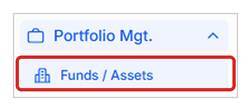
- Open Portfolio Mgt. > Funds / Assets and search for the asset
- Click into the asset, find the metric and click the + icon for the period you want to enter data for
- Enter the value (1). If anything needs clarifying, click Add Comment (2). Then click Submit (3)

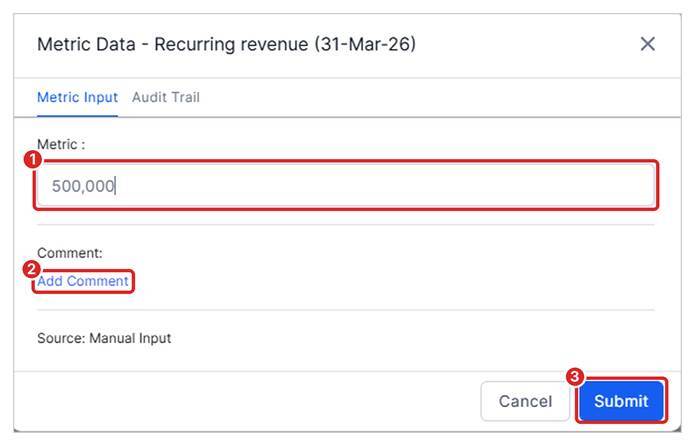
Repeat for as many periods as needed.
Method 2: Bulk upload (single asset)
- On the asset page, choose the periods you want to display, then click Submit
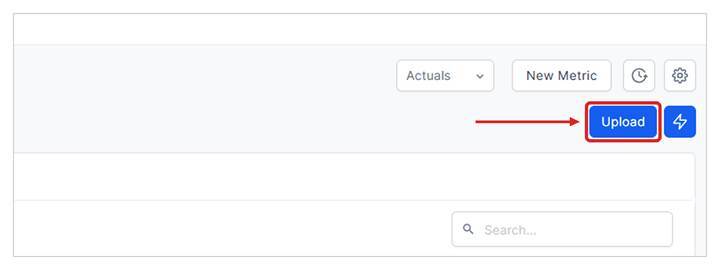
- Click Upload
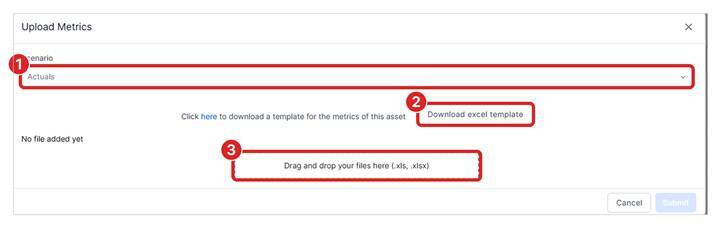
- In the Upload Metrics window, select the scenario you are uploading data for (1), then click Download excel template (2)
- Fill in the template, then drag and drop it into the upload area (3)
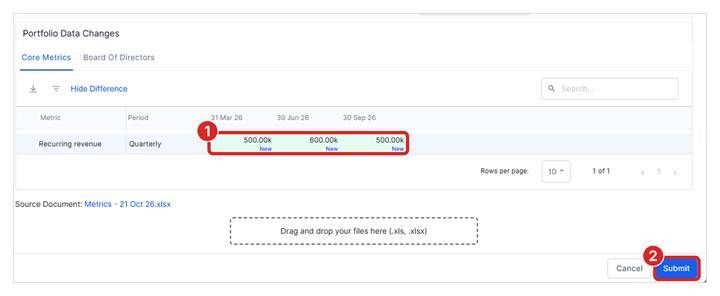
- Review the changes. The portal highlights new and changed values (1) so you can check them before they are saved. Once you have confirmed they are correct, click Submit (2)
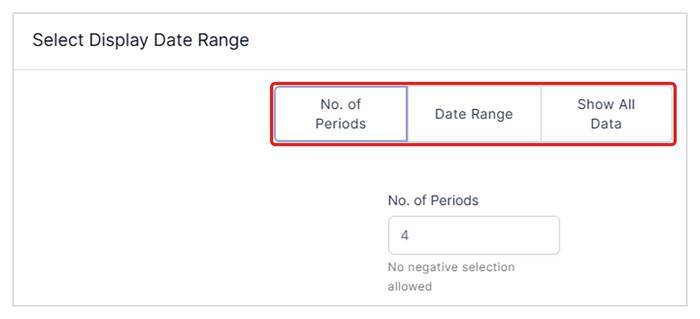
Period options:
|
Option |
What it shows |
|
No. of Periods |
A set number of periods. For example, 12 periods on a monthly view shows the current year. |
|
Date Range |
A specific date range you select. |
|
Show All Data |
All data currently in the system. |
Tip: for this method, enter values in the units defined for each metric, for example actuals, thousands or millions.
Use this method for metric types the multi-asset upload does not support, such as table arrays and attachments.
Method 3: Bulk upload (multiple assets)
This method lets you upload values for any combination of assets, funds, scenarios and dates in a single file.
Note: available to Super Admin users only.
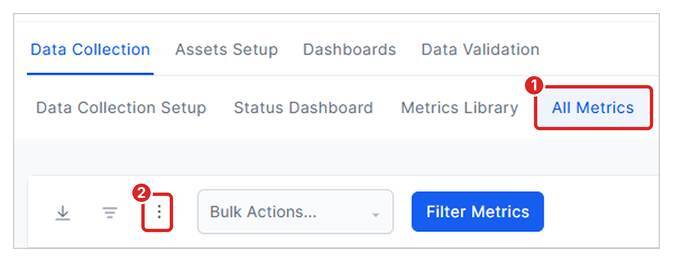
- Open the Control Center. Under Data Collection, select All Metrics (1). Then click the ⋮ menu next to the Filter icon (2)
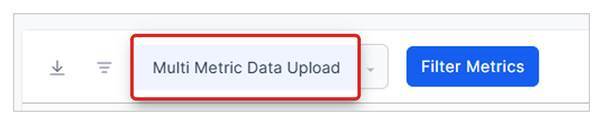
- Select Multi Metric Data Upload and download the template. The template is empty, ready for you to fill in
- Fill in one row per data point using the columns below, then upload the file
- The portal shows a preview before anything is saved. Use the asset dropdown and scenario tabs to step through each asset. Each value is marked as New, Changed (with the previous value shown) or No Change
- If the file has errors, the portal shows how many there are for each asset (1). Click Download Error Report (2) to get your file back with an extra column explaining each error. Fix those rows and upload the file again
- Once there are no errors, check the preview and submit. The data then appears on each asset
Template columns:
|
Column |
What to enter |
Example |
|
Asset/Fund |
The asset or fund name, exactly as it appears in the system |
Company A |
|
Scenario |
The scenario the value belongs to |
Actual, Budget |
|
Metric |
The metric name, exactly as it is set up in the system |
Revenue |
|
Period |
The reporting frequency |
Monthly, Quarterly |
|
Date |
The period end date. This must be a month-end date |
31/12/2025 |
|
Value |
The value of that data point, in actuals |
1500000 (not 1.5 for 1.5m) |
Important: enter all values in actuals, whatever units the metric is set up in. For example, enter 1.5 million as 1500000, not 1.5 or 1,500.

Common reasons a row is rejected:
- Missing columns, or unreadable or duplicate rows
- An asset, metric, scenario or period name that does not match the system
- A date that is not a month-end date, or cannot be read
- A value in the wrong format for the metric, for example text in a number field
- An unsupported metric type (see below)
- Unsupported metric types: the multi-asset upload (Method 3) does not support formula, GenAI, table array, table array flex or attachment metrics. Use the single-asset upload (Method 2) for table array and attachment metrics.
- Formula-driven metrics: do not upload data for these. The formula takes priority, so uploaded values will not show.
- Units: for Methods 1 and 2, enter values in the units defined for the metric. For Method 3, always enter values in actuals.
- Clearing a value: in Method 3, enter <<clear>> in the Value column to remove a stored value. This is the only way to delete a value through the upload.
- Asset template: make sure the metric is on the asset template. If it is not, follow the knowledge base article "How to add metrics to assets".
Note: if there are any errors, nothing is uploaded. Submit stays disabled until every error is fixed.
Troubleshooting: metrics not showing
If a metric does not appear for an asset, check the following in order:
- Metric settings are set up. Click the cog icon to check the metric settings. If they have not been set up, the values will not show
- The metric is pushed to the asset. Go to the Metrics Library and search for the metric. Click the icon furthest to the right to see which assets use it. If your asset is not listed, tick the checkbox to the left of the metric name and click Add to assets
Things to bear in mind